Airtable – Connecting Tasks and Resources

I added two more tables to my AirTable project.

Previously I had table labeled

  • Staff: All the staff members
  • Notes: Notes on the staff members
  • Tasks: My to-do list. It is set so I can link a task to a staff member or not, as well as all the usual GTD stuff (Project, Context, . . .)

I’ve added two more tables and I think those are the last two I will add. I really will not know how this all works until I actually use it with teachers, but I think this is better than my attempt at anecdotal records in the past.

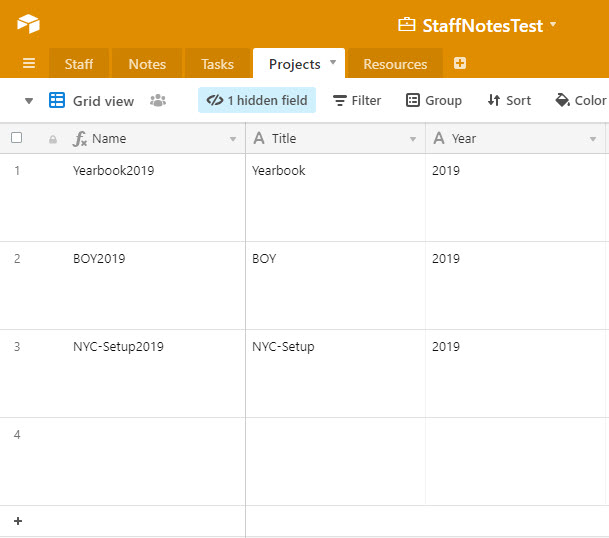
The Projects table is just a list of projects. I wanted a way to limit the chance of me mistyping a project (Yearbook2019 vs Yearbook-2019).
I also added a resources table. I wanted a way to keep resources I might need (links to a particular google drive folder or file, for example) with the tasks associated to it. So I added a resource Table and I linked it to the task table.

So that is where I am going to stop tweaking. In the words of Mike Tyson, “Everyone has a plan until they get punched in the face.” So I will give an update with this after the first quarter.
Summer Updates V001

Two Updates on Summer.

  1. With the help of IFixIt I have upgraded the memory and installed an SSD. My old 2008 Macbook Pro is actually usable. (But the fan sound is super loud, so I am going to open it back up and try to clean the fans)
  2. I have signed up for the Database MOOC and I have watched like 2 videos.

Todo Lists in Airtable

I really like and enjoy Airtable.

I’ve been watching a bunch of Gareth Pronovost’s videos about Airtable. Gareth is a consultant who focuses on Airtable. Lucky for me he has made a ton of really insightful videos as well.

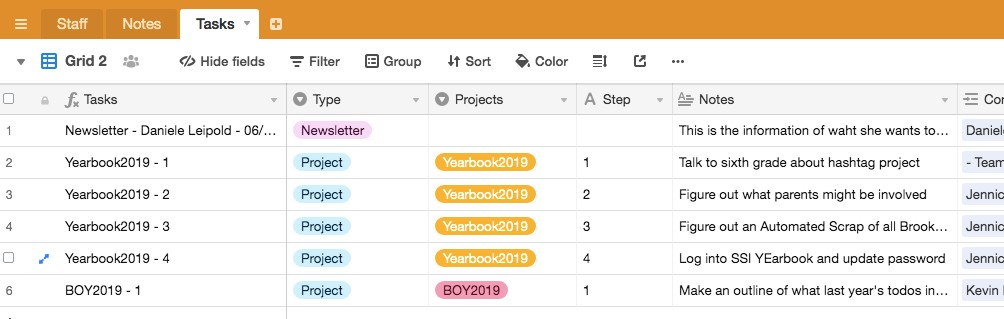
So with my anecdotal records “base” I’ve added on a todo table. Having them in the same base lets me add a contact person for each task. I like the idea of sitting down with my principal and bringing up all of the tasks that are “for” her. (The first row below would be an example. I work on a weekly newsletter for parents, “Daniele” would be my principal, the due date is there as well, it is just a bit cut off.

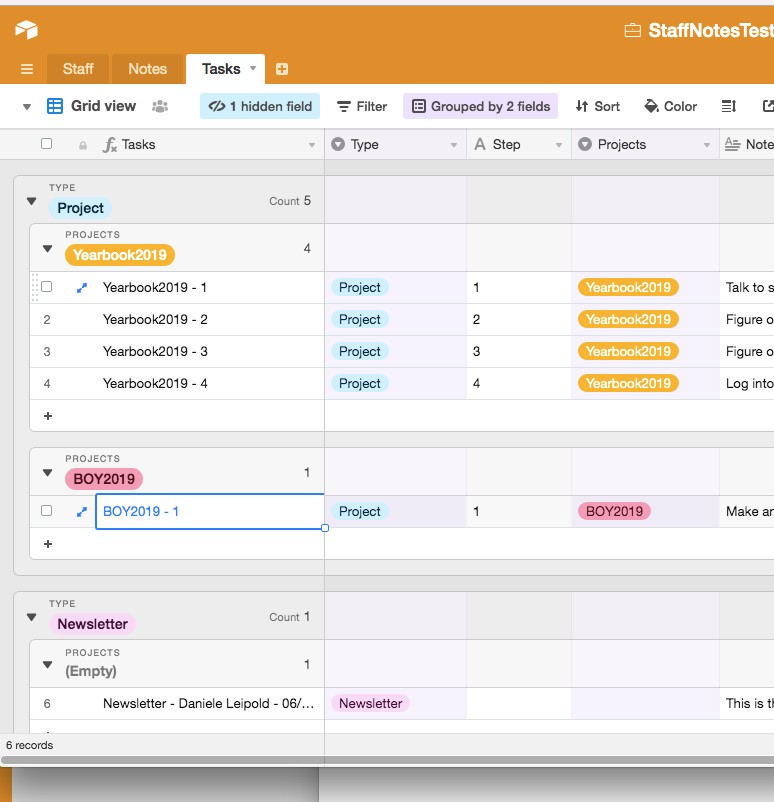
But I’ve always struggled on how to group projects together. Because I need to keep track of them, but they are hard to wrangle. So I added in a Project name field, and a Step column to list the order of the steps (if needed). And with the magic of Airtable groups I can change the view to make it easier to go through.

For the todo fields I have . . . .

  • Task Name: This is a formula field. If it is a project the field lists as “ProjectName – Step Number” (Yearbook2019 – 2). If it is not an official project the naming convention becomes “Type – Who is it for – Due Date” (Newsletter – Daniele Leipold – 6/20/2040)
  • Type: Project, Newsletter, Website Training
  • Projects: Unique Name of the project
  • Steps: Only for Projects, so I can give an order to the projects, what I need to work on in what order.
  • Notes: Details of what this involves
  • Contacts: Who am I doing the task for / who do I need to update.
  • Status: InProgress, NeedToSchedule, Waiting, Scheduled, Someday/Maybe, all the GTD sort of stuff
  • Context: Again GTD, where does this need to happen. At my computer? Talking to a particular person?
  • DueDate: Is there a hard Due Date?
  • Start Time: Gareth had this in his. I put it in mine, but I don’t know if I want to keep it or not.
  • Duration: See above
  • Complete: I guess Status could be used as well, but it is nice to have a button to check off afterwards.

Here is the public link to the grouped Grid View. It is view only, but I think gives a good idea.

Summer Plans 2019

My position in our “overly large school system” is 11 months. Which means, as of today, I am on summer break. I have 19 work days (27 total days) before going back to my building. Last year, after the craziness of my personal life last year, I decided to take a 100% work break. I watched movies, played video games, and had lunch with friends.

This year I want to switch that up. I still want to reach out to some friends for lunch. But this year I want to focus on some self-development topics. Here is my list so far.

  • Exercise for 24 of those days, to get me closer to my #19For2019 goal of doing 100 workouts in 2019.
  • Standford has a MOOC on Databases and I found a good book on mySQL to extend my love of databases past Microsoft Access
  • Posting here more often, again getting me closer to my #19For2019 goal of 50 blog posts.
  • Updating the memory and hard drive in my 2008 MacBook Pro.

Anecdotal Records for Teachers

Anecdotal records for teachers has been my white whale. I’ve tried multiple ways such as paper notecards, Google Sheets, and OneNote pages. Nothing really seems to work. It is either too hard to do data entry or sorting becomes too hard.

And I stumbled upon Airtable and I think I found my answer. Airtable is essentially a light-weight relational database. You can’t do real SQL queries. But you can create lookup relationships between tables, which is pretty wonderful. You can base fields off of formulas, which is super helpful.

But, the big deal here is you can create different ways to view your data. You are not just stuck with a big table. You can have a grid, a kanban board, a calendar, and a few more.

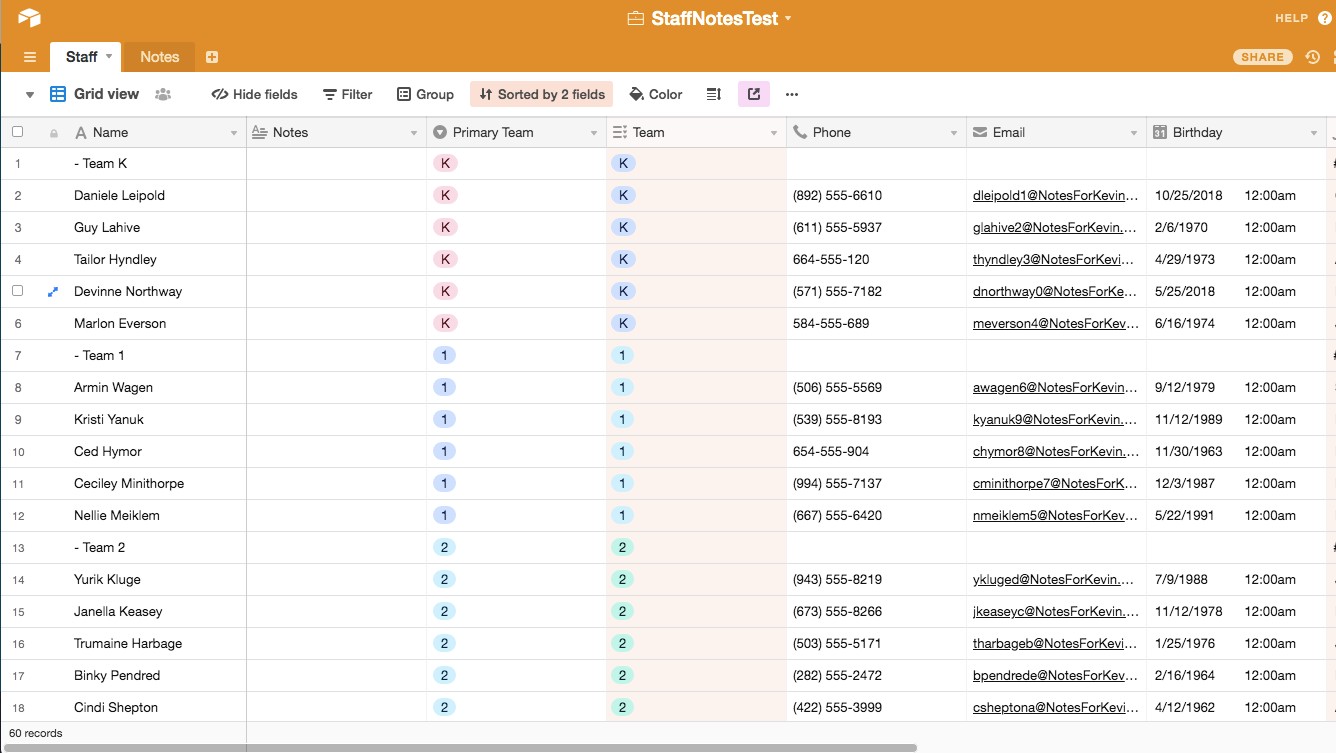
For example, here is a sample of my list of teachers (all fake data). We have

  • Name
  • Notes
  • Primary Team
  • Team (Because you might be ESOL, but also on the 4th and 5th grade team)
  • Phone
  • Email
  • Upcoming Birthday

This is the Standard Grid View. It is a giant table that you can sort and filter like if it where a spreadsheet.

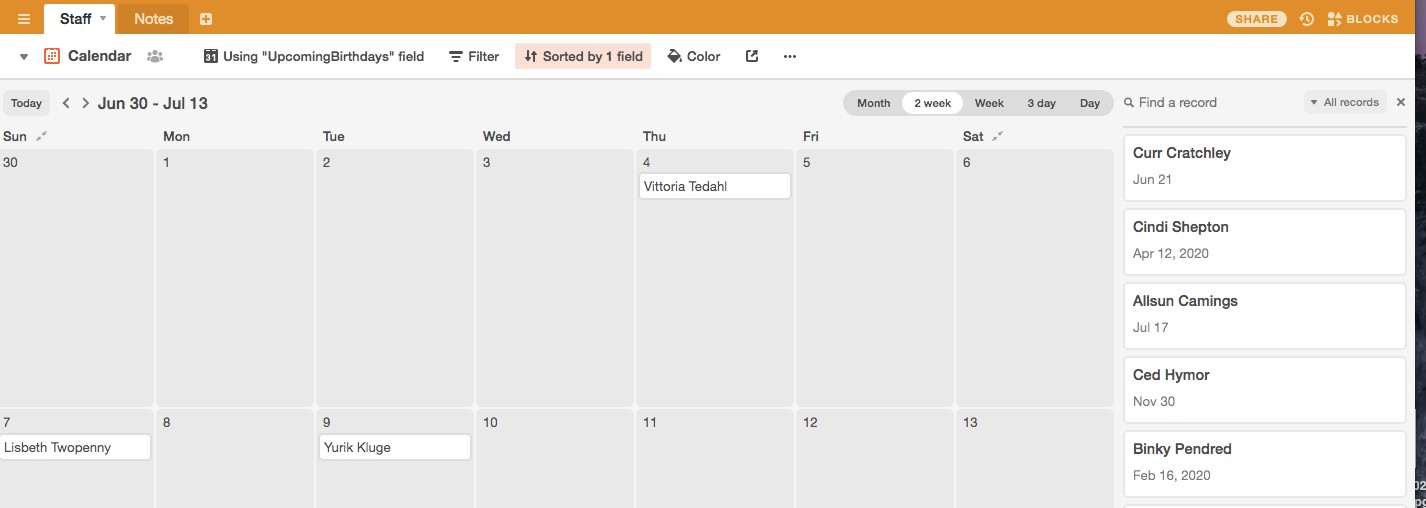
But, by clicking next to the dropdown by “Grid View” you can change the view. Here is the Calendar view, based on upcoming Birthday. How amazing is that!

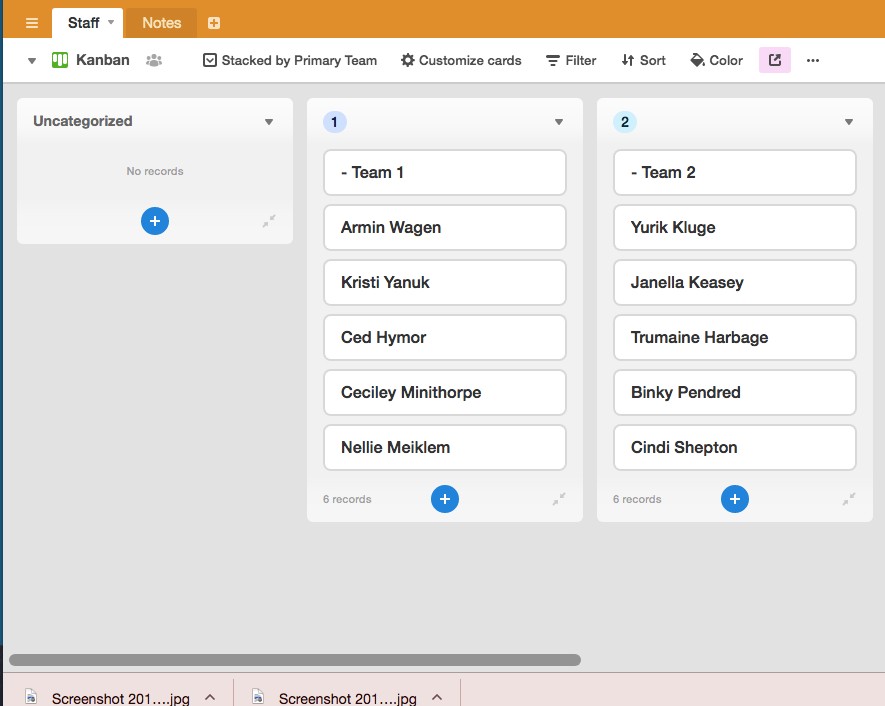
And then you can have a kanban view, which you can drag and drop which will change the underlying data. This is now sorted by team. If you drag and drop to a different column, the team will change as well.

This is the test case I built to see if it was workable. If you use the link you can see the whole “base.” No edits, but you can see how everything else works. It is pretty mind-blowing. If I end up using it for staff notes, I’ll end up purchasing a license, because I believe in “buying the pencil.” I really like the possibilities of this tool!

What’s Next

In every endeavor that matters you will have disappointments. You won’t get into your first choice college. Promotions will go to someone else. Holes the size of semi-trucks pop up in plans that seemed foolproof.

The question becomes what to do after. After you wrestle with the sadness and the feelings of failure. After you take a moment to realize that, as much as you may want to beat yourself up, this is not a personal referendum on you. And as much as your brain may want you to feel bad about yourself it is not helpful and you deserve the kindness you would give anyone else.

So wallow for a while, but not to long. Reflect on what happened and the part you played, but realize that there were other factors outside your control as well. Figuring out what’s next after a disappointment says as much about you as what you do after a success.

Other duties as assigned

Most job descriptions end the same way. They list the interesting parts and end with “other duties as required or assigned.” The phrase “other duties” can cover a multitude of assignments. And nobody ever wins an award for being really good in that part of your job. But ignoring those duties, or doing them half way can lead to serious issues.

In my 1:1 school, laptop labels have become my other duty. And I have fallen down on it.

So I spent a good chunk of Friday streamlining and making them easier to make and replace. Because if it is going to be a duty that I have to do regularly, it also needs to be one that I enjoy and that limits the time I spend in that category.

As an aside, the great XKCD has a chart (https://xkcd.com/1205/) exploring how much time you can devote to making a routine task more efficient before you end up spending more time than you save.